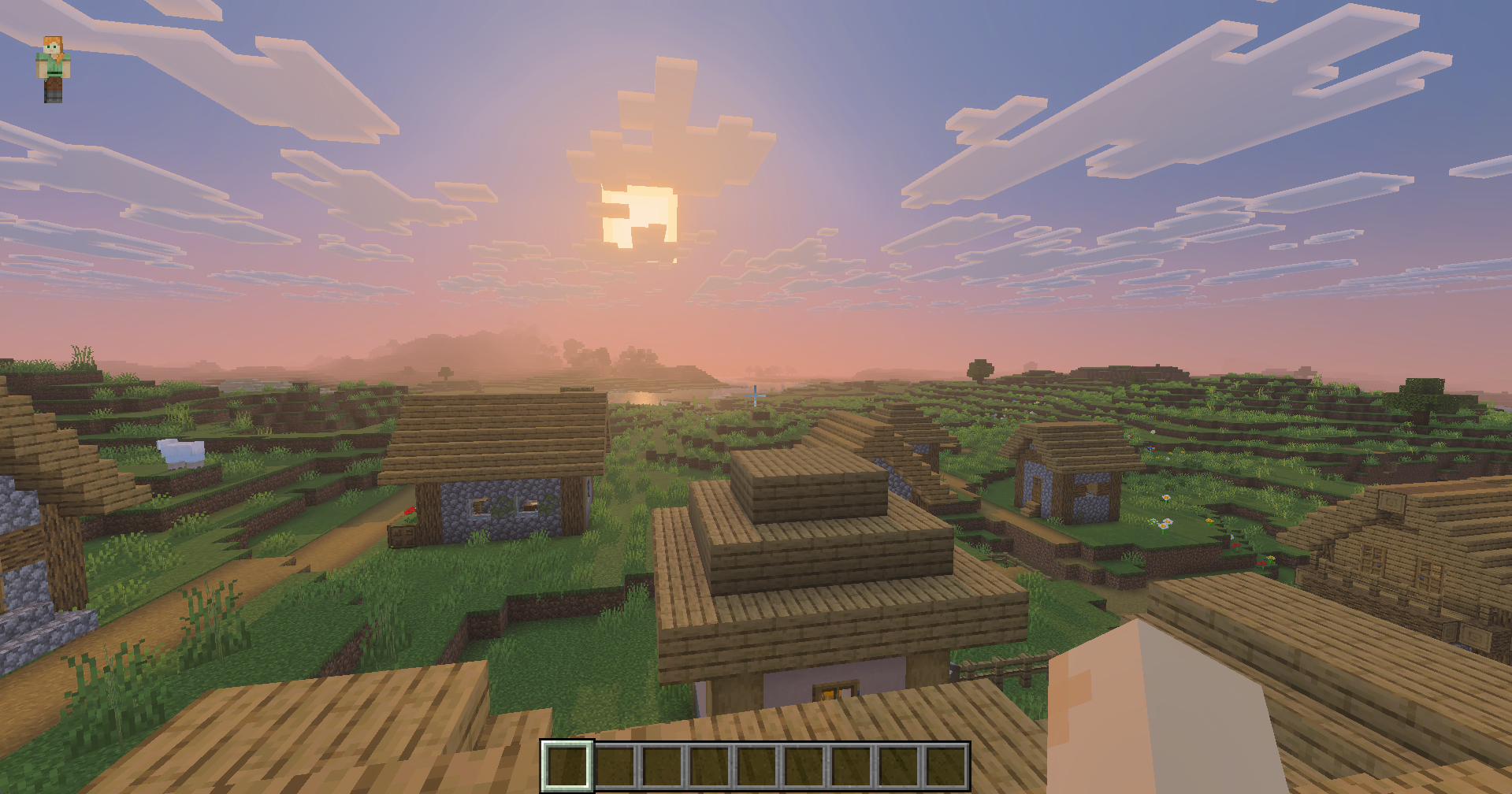
Minecraft has always had its distinct visual identity. With chunky blocks, simple textures, and bold colors, the game has become instantly recognizable and timeless since its launch. Over time, however, players are looking to have a more immersive and realistic experience with the game. This is where Minecraft’s Vibrant Visuals come in, as they enhance the game’s look without sacrificing performance or Minecraft’s identity.
Vibrant Visuals allows you to improve the look of Minecraft as you experience it. You can even customize the settings of this and use add-ons to make custom-pack visuals depending on your tastes.
If you’re a builder, adventurer, or just a simple visual enjoyer of Minecraft, this guide below helps you have a clearer picture of Minecraft’s Vibrant Visuals, such as what it is, its features, how to enable and test vibrant visuals, and why you should use it.
What are Minecraft Vibrant Visuals?
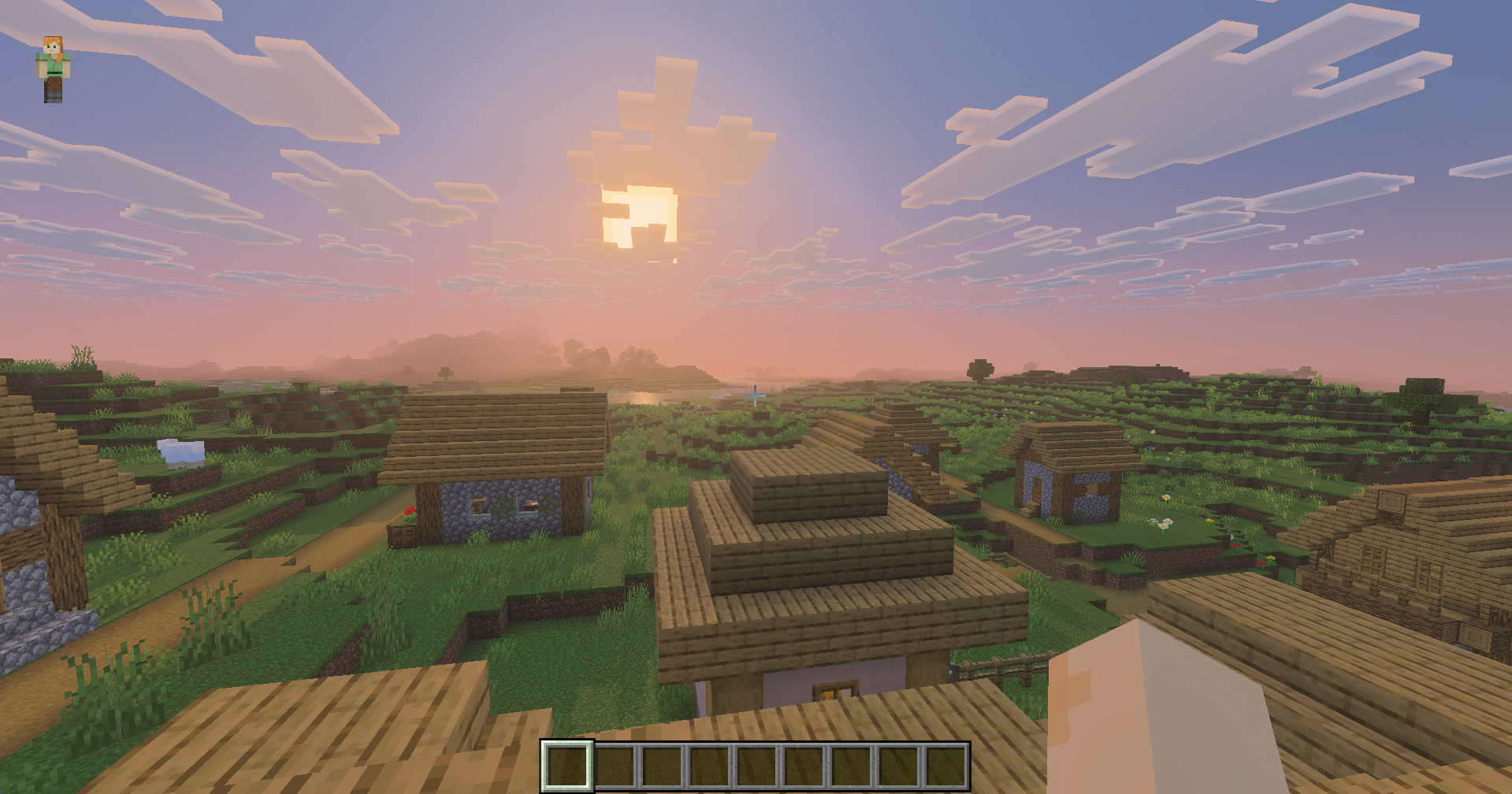
Vibrant Visuals is basically a graphics mode that improves the overall visual look and elements of Minecraft. It adds physically-based textures, shadows, atmospheres, and environmental effects that make Minecraft more aesthetic and immersive for players. Think of infinite clouds, reflective waters, volumetric fog and lighting, and enhanced textures.
Besides that, Vibrant Visuals aims to balance out performance and beauty, maintaining Minecraft’s iconic block-like charm alongside depth and improved visual quality. It makes natural elements in-game behave more realistically.
As Vibrant Visuals only affects the graphics of Minecraft, expect it not to affect any of your gameplay. However, if you do enable Vibrant Visuals on low-spec devices, you might get decreased game performance. So, Vibrant Visuals is quite dependent on your device’s capabilities.
Is it only Available on Minecraft Bedrock Edition?
As of present, Vibrant Visuals is only available to Minecraft Bedrock Edition. This includes the following platforms and operating systems:
- Windows 10/11
- iOS and Android
- Xbox One and Series X|S
- PlayStation 4 and 5
- Nintendo Switch
However, the Minecraft team will soon bring Vibrant Visuals to Java Edition. The Minecraft team mentions from the official Minecraft blog that they’re working on rebuilding the Bedrock Edition Vibrant Visuals code for a Java version without sacrificing stability or performance. At present, you can test out Vibrant Visuals on Bedrock Edition and give feedback on how you want it to be implemented on Java.
For now, however, Java players should stick to using Shaders and mods to improve their Minecraft visual experience.
What are the Features of Vibrant Visuals?
Vibrant Visuals in Minecraft enhance the game in subtle yet very impactful ways. While it doesn’t give the game any huge changes, Vibrant Visuals amplifies the existing graphics of the game.
Physically-Based Rendering
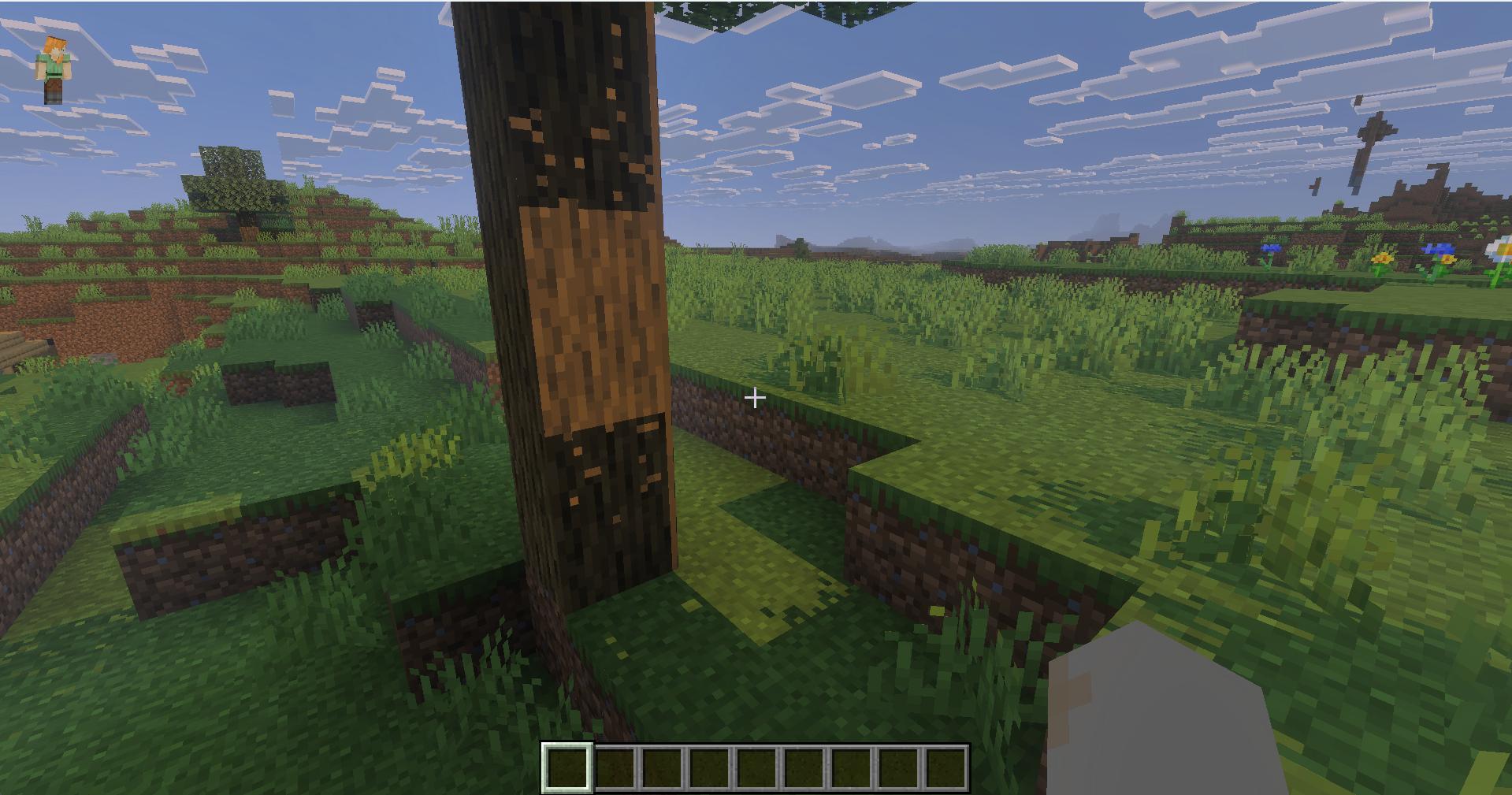
First off is Physically-Based Rendering (PBR). This is the main upgrade introduced when you have Vibrant Visuals enabled. PBR improves how lighting in Minecraft interacts with different materials and surfaces based on real-life physics.
Some examples include the following:
- Metals appear shinier and more reflective
- Ores and minerals with glints
- Stone, Dirt, and Wood with more texturized looks
- Cast shadows are more accurate
Keep in mind, though, that PBR doesn’t turn Minecraft into a hyper-realistic version of itself. Just expect an overall more polished look. Plus, PBR is optimized for your device to run smoothly with little to no issues.
Directional Lighting and Shadows
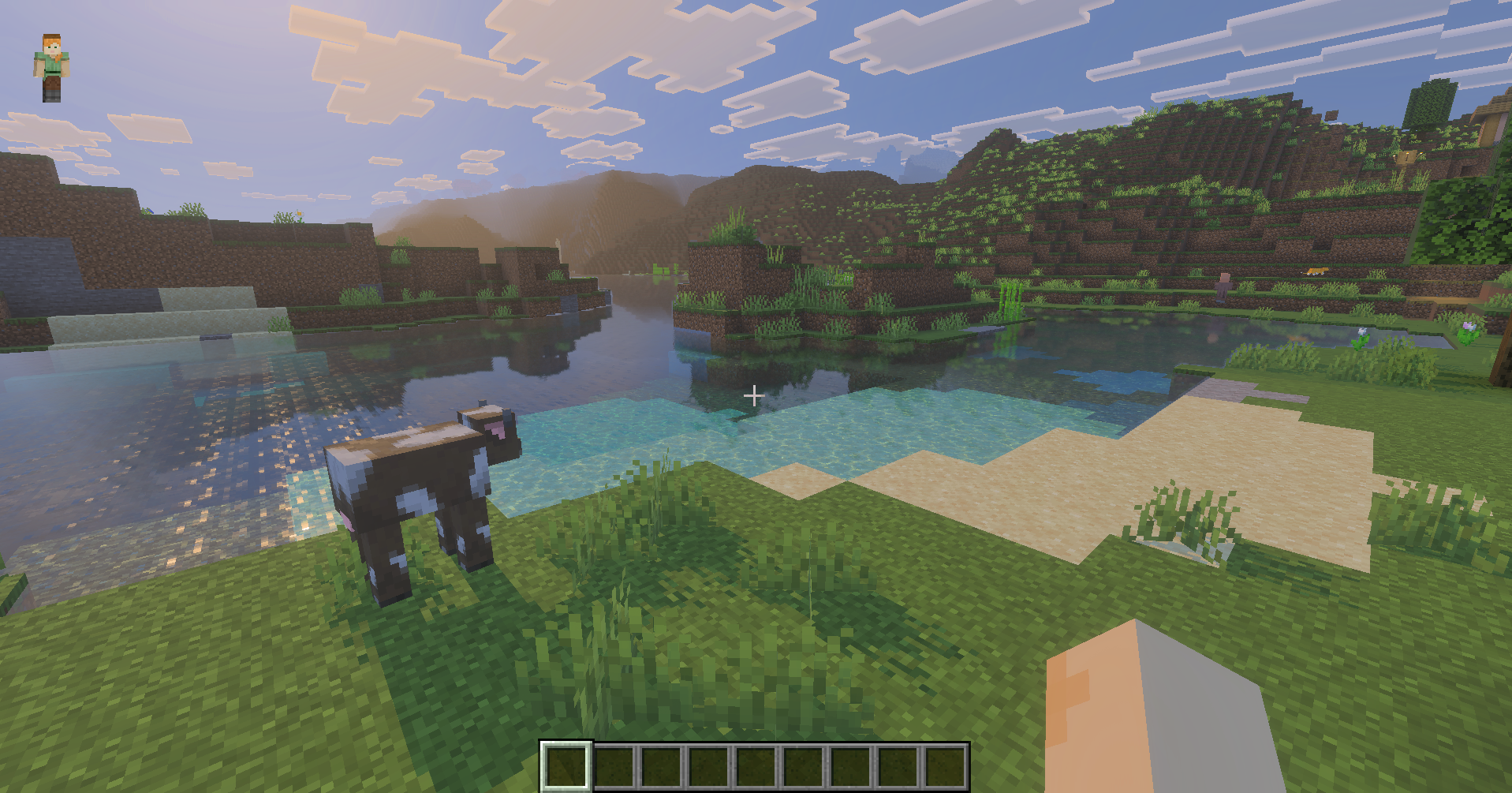
Lighting is another aspect that’s pretty important in Minecraft, especially when setting the mood for different scenes. Whether you’re battling mobs at night or waking up to a new day of productivity, Vibrant Visuals makes lighting your partner in all your Minecraft sessions.
Improved Light Direction and Intensity
You can expect light sources to cast more natural light cones and highlight surfaces more evenly. Similar to that, ambient light is blended well, and contrast is deepened for dimmer areas. This creates a more atmospheric feel when playing.
Enhanced Shadows
Shadows within the Vibrant Visuals graphics mode become softer, more accurate when your objects are placed, and work dynamically whenever sun angles change. You’ll notice this more with trees, structures, and mobs moving under the sunlight and with less pixelated shadows.
Sunrise/Sunset Upgrades
Sunrises and sunsets are crucial to showing players how transitions between different times are important. With Vibrant Visuals, you can expect warmer color tones, better shading, and dramatic silhouettes, which make gazing during sunrises or sunsets even cooler.
Environmental Effects
Then we have revamped atmospheric effects, some of which include enhanced fog, upgraded water rendering, weather improvements, and biome color enhancements. These effects are adjusted per biome and the change in weather.
This makes Minecraft more dynamic and shows the team’s attention to detail with the playing experience.
Vibrant Visuals Options
Vibrant Visuals has a variety of settings you can tweak to your liking. However, not everyone might be familiar with what each setting does. If you’re curious about what settings Vibrant Visuals has, then you’re in luck since we’ll be detailing this below:
| Option | Description | Setting Values |
| Adjust Gamma | This adjusts the overall screen brightness using a slider. | 50%, 100%, 150% |
| Bloom | Changes how strongly a bright light glows. | 0 – 100% |
| Clouds | Adjusts how far away clouds are rendered | Low, Medium, High, Ultra |
| Point Light Quality | Controls how detailed and smooth point light effects are | Off, Low, Medium, High, Ultra |
| Point Light Shadow Quality | Changes details and the render distance of cast shadows from point light sources such as Torches, Lamps, etc | Off, Low, Medium, High, Ultra |
| Reflections | Controls the clarity and details of reflective surfaces like Water | Off, Low, Medium, High, Ultra |
| Resolution | Changes the upscaling of the graphics resolution | Automatic, Native, 33%, 50%, 66%, 75% |
| Shadow Quality | Adjusts how sharp and detailed shadows appear and render for you | Low, Medium, High, Ultra |
| Upscaling Mode | Sets the method to upscale your visuals | TAAU, Bilinear |
| Volumetric Fog Quality | Changes the level of detail of volumetric fog | Off, Low, Medium, High, Ultra |
Why Should I Use Vibrant Visuals?
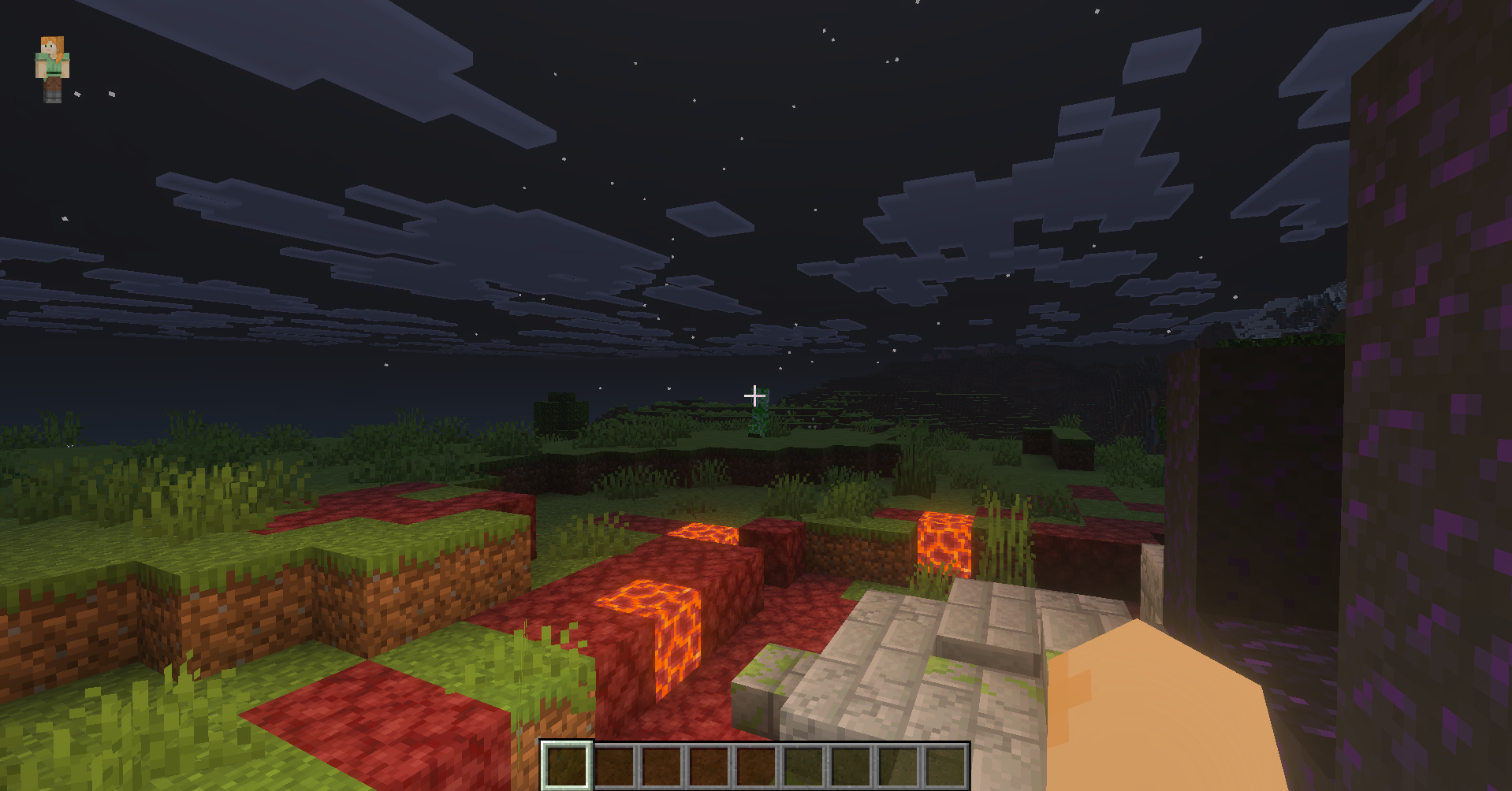
Now that you’ve discovered Vibrant Visuals even more, you might be wondering why players like yourself should consider using it at all, especially when its differences are subtle and less noticeable. Well, there are many reasons to enable this, depending on your playstyle:
More Immersive Gameplay
Simply, your Minecraft world feels more atmospheric. With Vibrant Visuals enabled, you’re in for a lively and realistic playing session without losing Minecraft’s signature aesthetic.
Better Building Experience
As a builder, Vibrant Visuals can help you get more dramatic lighting, especially with directional light, emissive textures, and cleaner color palettes. It even helps interior showcases, gaining better subsurface scattering for furniture you’ve built.
Improved Navigation
The enhanced visuals also make it easier for you to navigate around Minecraft’s vast worlds. Whether you go in caves, go out in the open darkness, or use Torches and Lanterns on hand, you’ll find your way to your destination with ease.
No Add-Ons nor Texture Packs Needed
The biggest advantage of Vibrant Visuals is that you won’t need to download any additional content to your game. You simply have to rely on the video settings and adjust your Vibrant Visuals when needed. There’s more convenience for you without making any unnecessary downloads.
How do I Enable or Disable Vibrant Visuals?
At this point, you’re probably convinced to start using Minecraft Bedrock Edition’s Vibrant Visuals. However, you might be unsure how to actually activate them in your game launcher. Well, you can do this across different devices, and they have pretty much the same user interface to access the settings.
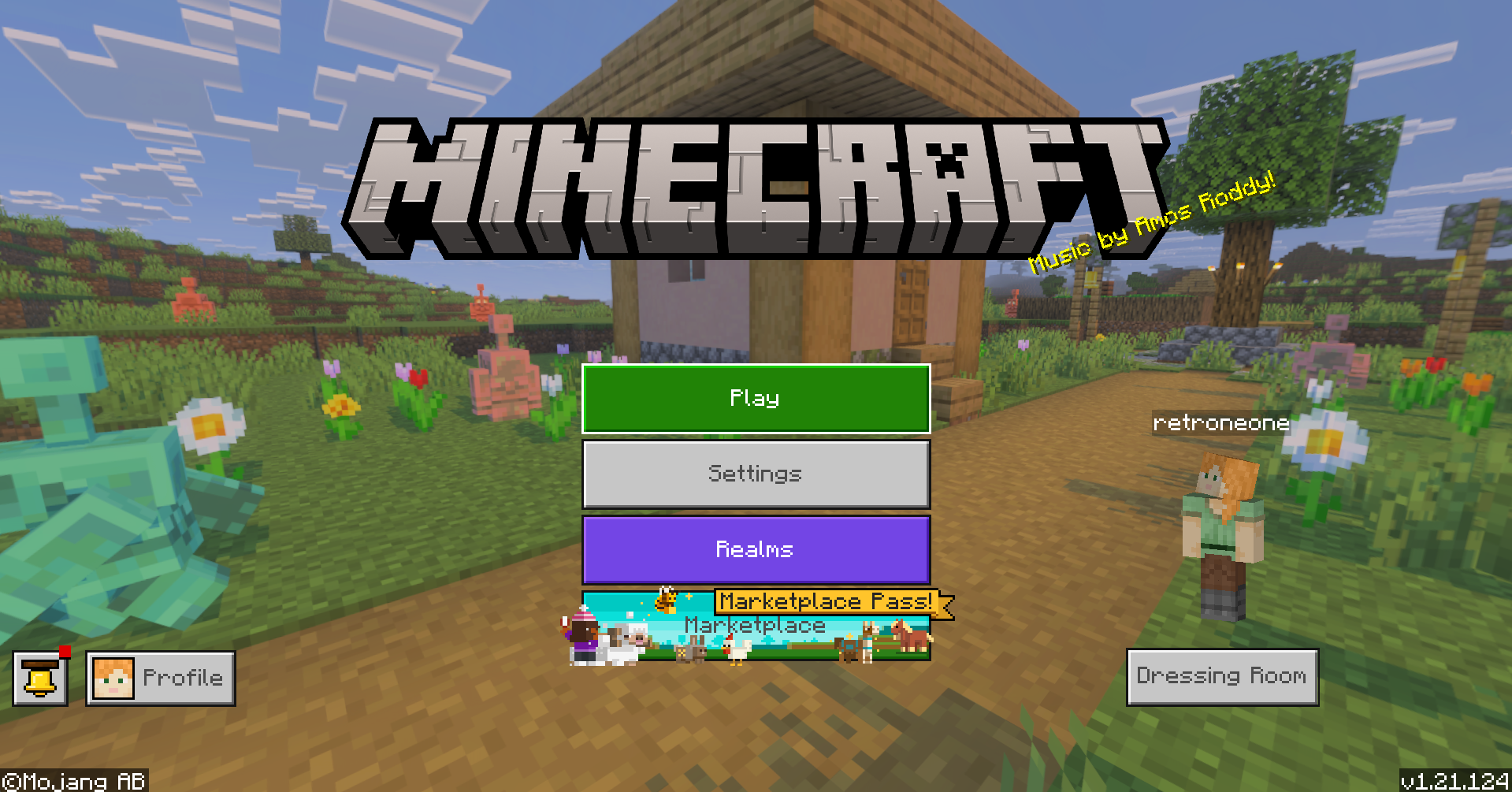
Step 1: Launch Minecraft Bedrock Edition
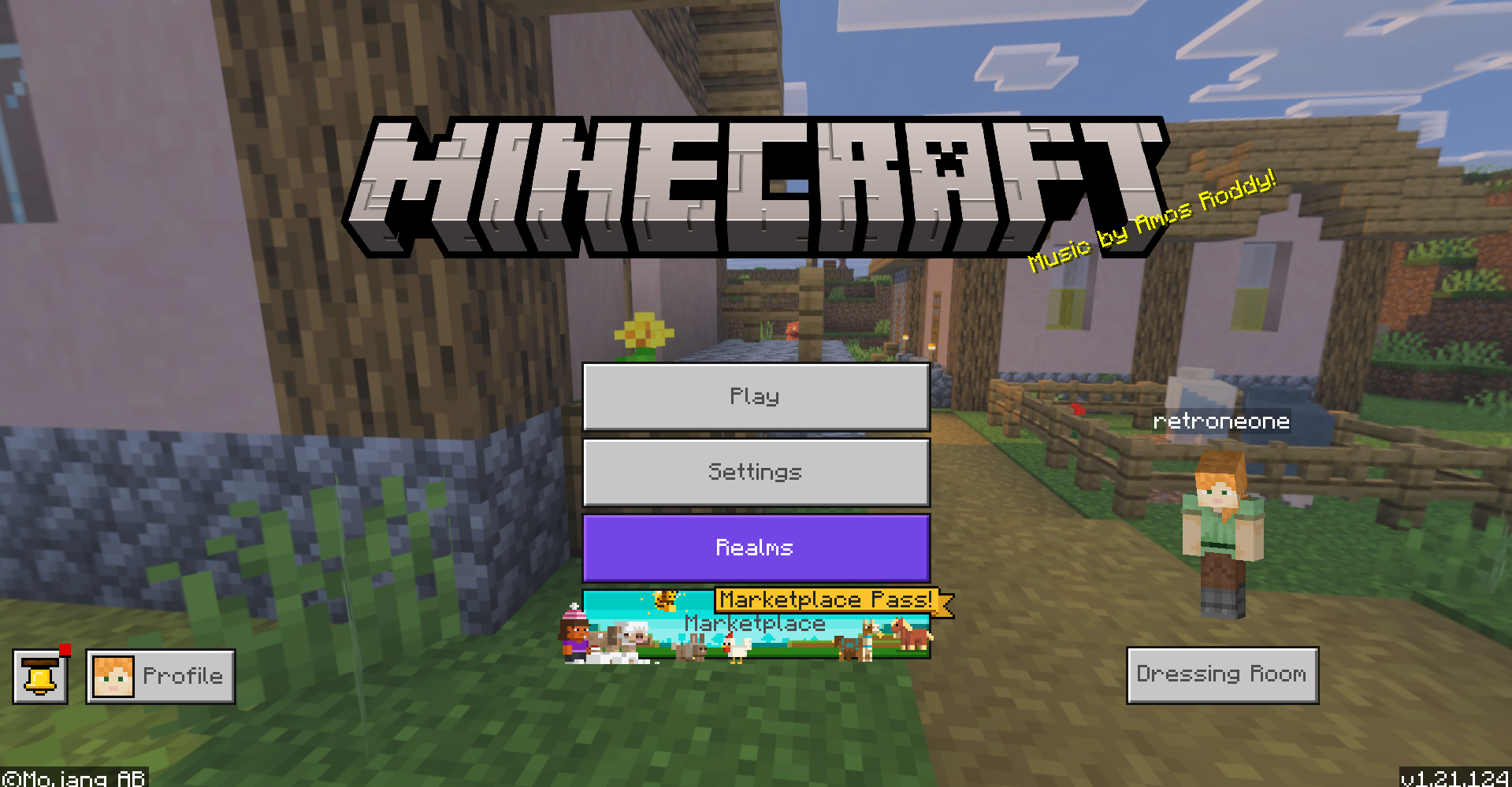
Step 2: Click the Settings button to open up the settings
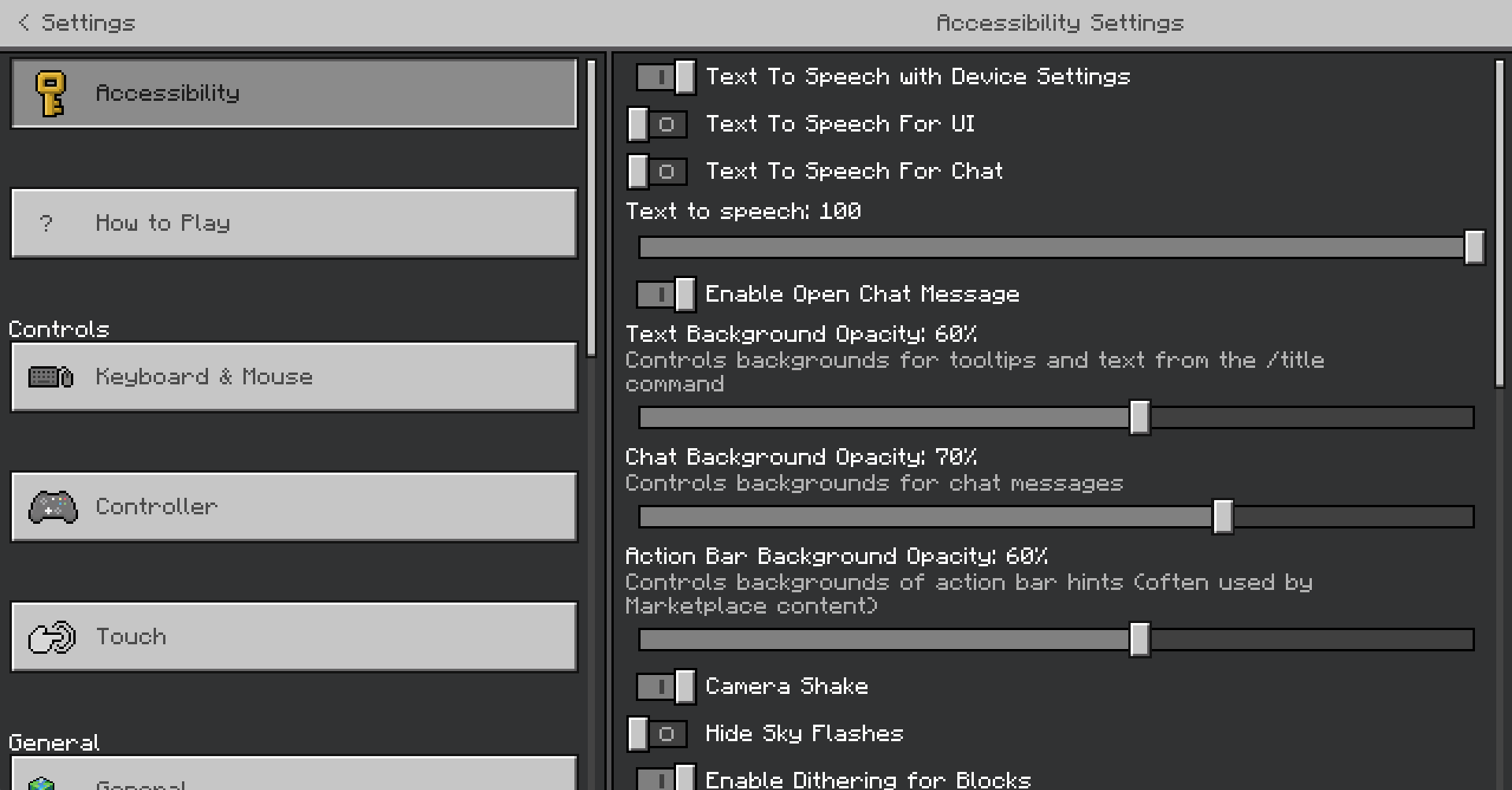
Step 3: On the left side, scroll down to the Video tab
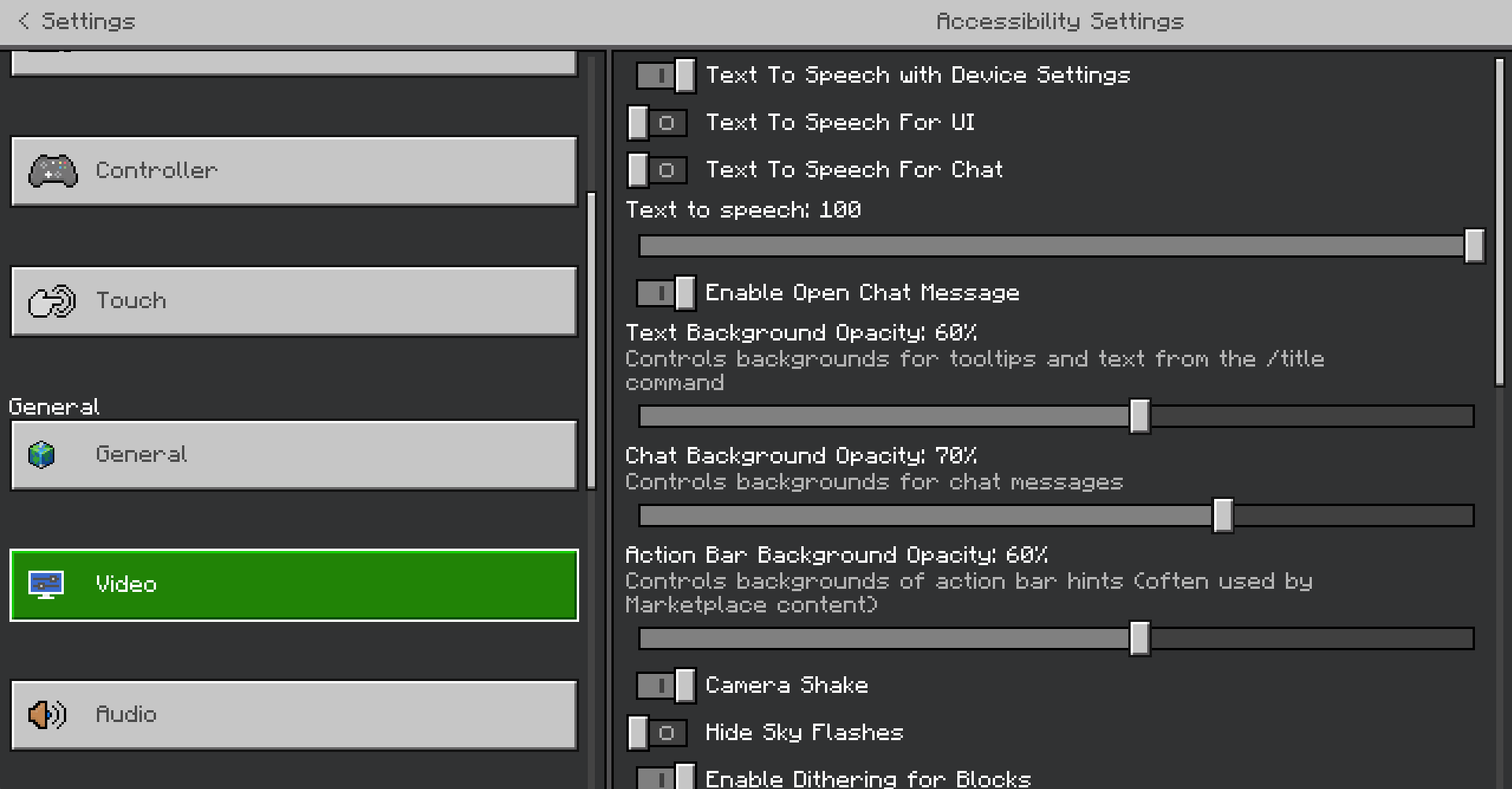
Step 4: Click the Graphics Mode
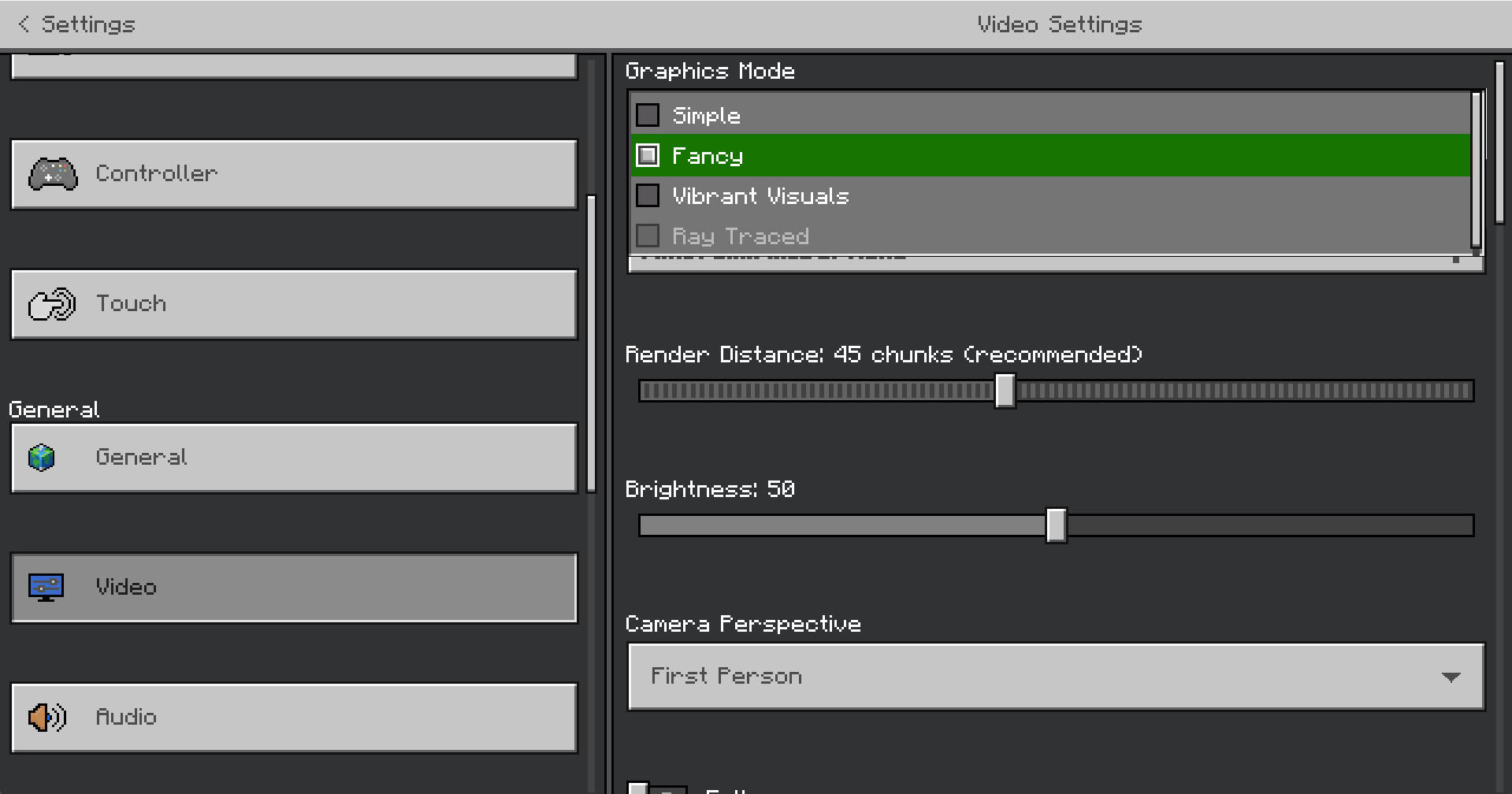
Step 5: Choose Vibrant Visuals
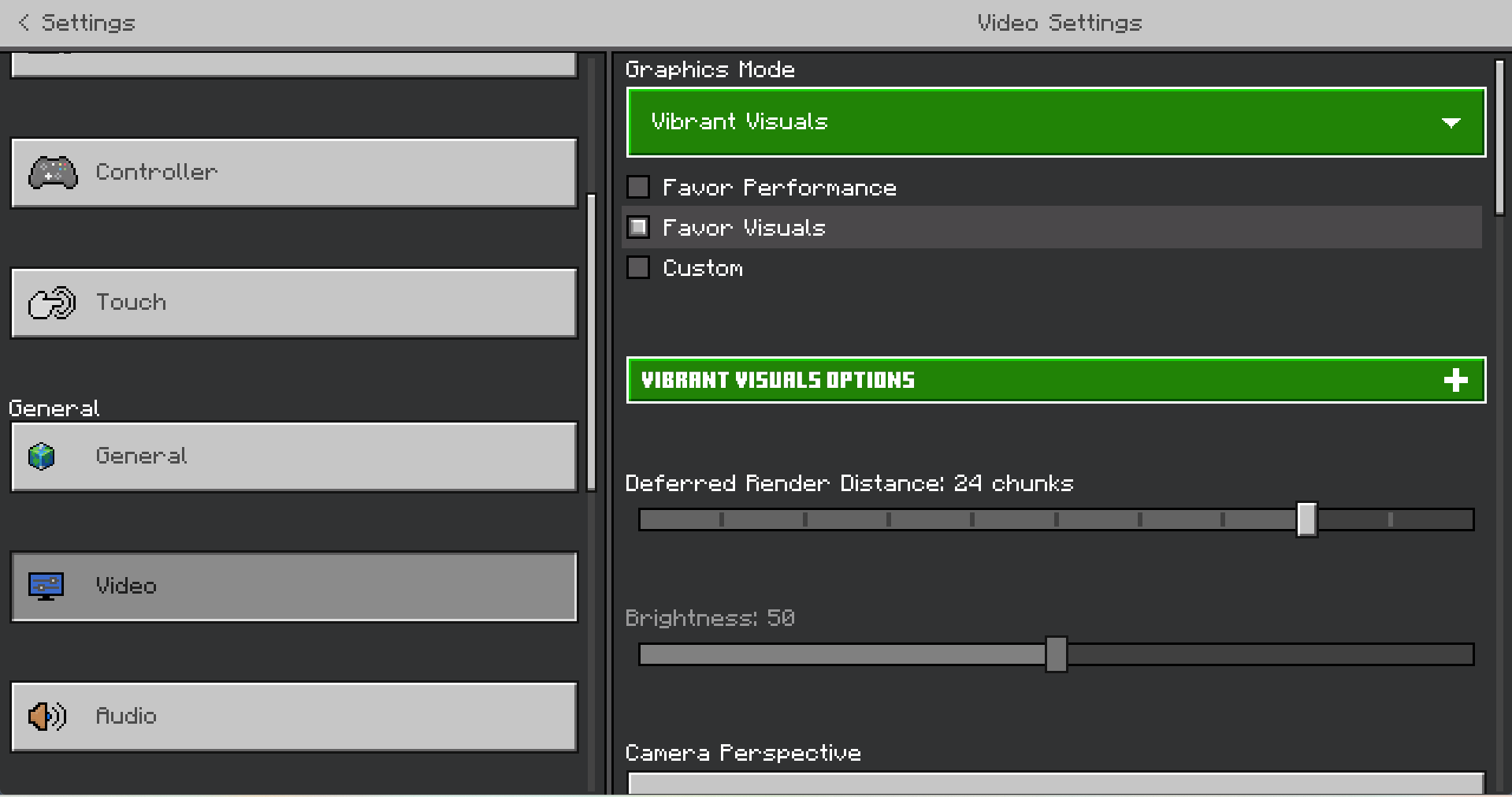
How do I Customize the Vibrant Visuals?
Step 1: Click the Vibrant Visuals Options settings
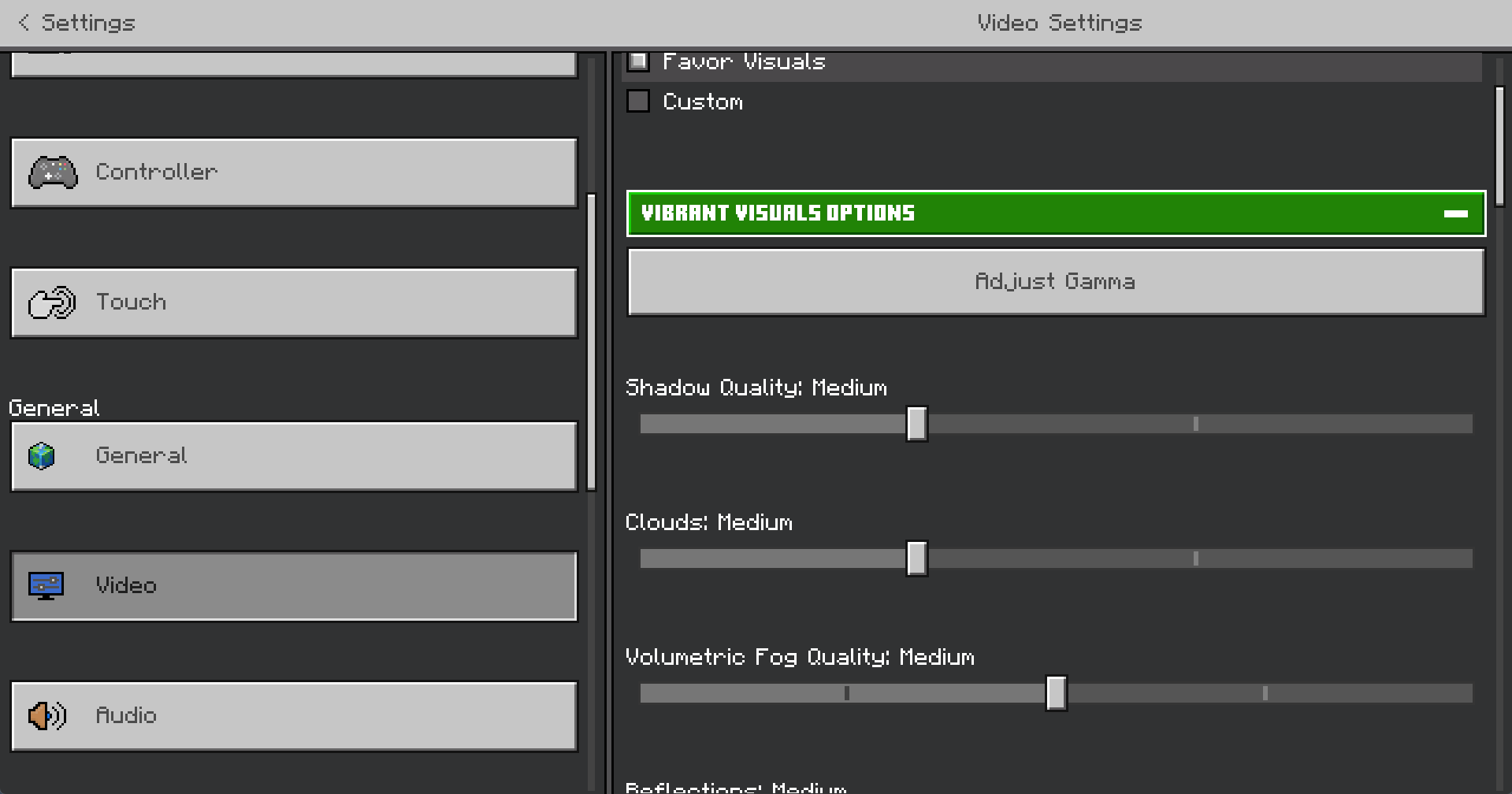
Step 2: Adjust the settings you want to change carefully
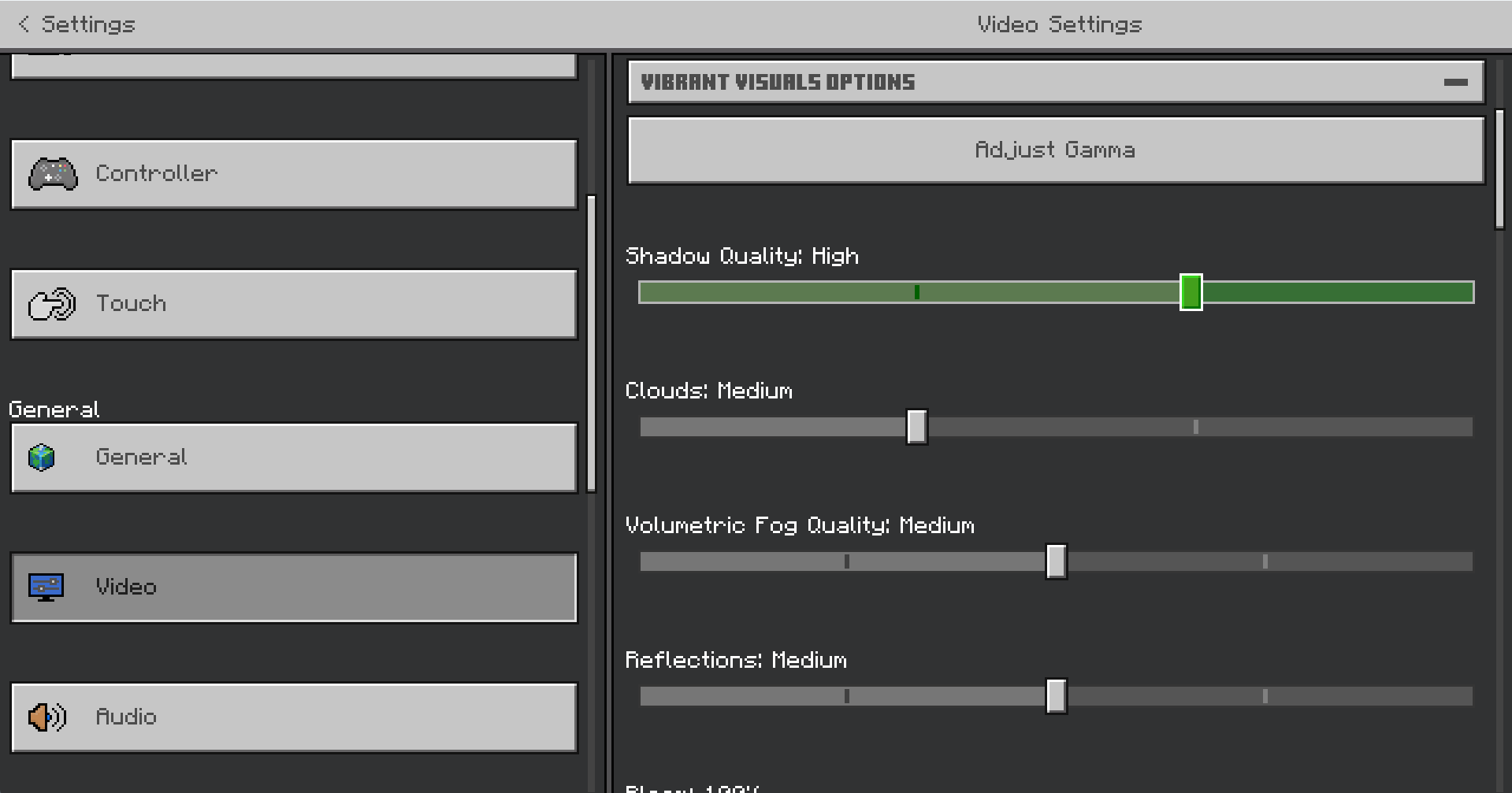
Inside the menu, you’ll see different options for lighting, shadows, fog, reflections, clouds, bloom, and more. Take your time adjusting each setting, as some can affect performance depending on your device.
Step 3: Exit the Settings and hit Play (it should save automatically after changing)
Step 4: See the changes in your Minecraft world
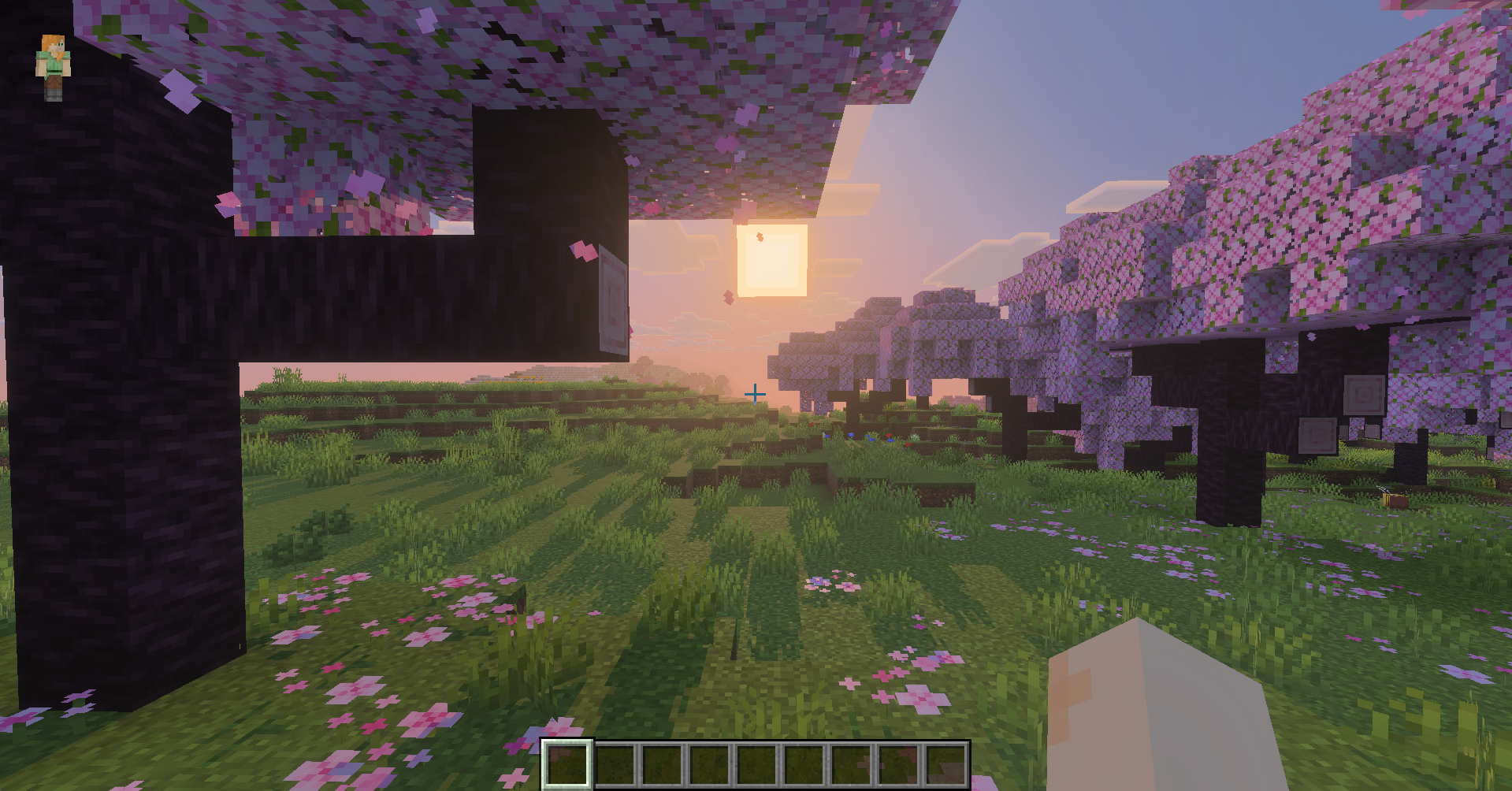
If your game starts to lag, try lowering shadow quality, fog detail, or reflections. When you test Vibrant Visuals, adjust your options one at a time so you can easily understand what each setting does. You can also revert to the default values later on if needed.
Overall, Minecraft Vibrant Visuals is one of the most exciting improvements added to Minecraft’s Bedrock Edition, and will soon for Minecraft Java Edition. It modernizes the game’s visuals on par with today’s graphics technology in video gaming. At the same time, it doesn’t fundamentally change how it feels to play Minecraft itself.
Whether you’re exploring lush biomes, decorating cozy cottages, or building massive structures, Vibrant Visuals adds a whole new way to experience Minecraft visually, enhancing your playing session and making every environment feel cooler. Even simple moments like watching a sunrise or lighting a cave can feel more dynamic and memorable with enhanced visuals.
Vibrant Visuals is simple to enable, easy on performance, and compatible with virtually all Bedrock devices. If you want better lighting, livelier colors, and more immersive worlds without complicated mods and add-ons, Vibrant Visuals is the way to go. It’s perfect for any kind of Minecraft player out there, regardless of playing style.

Renee is a freelance writer with a passion for gaming and pop culture content. While she mainly writes about games, she also does graphic design and illustration work from time to time. With a passion for the creative arts, she blends her skills to tell stories across various mediums.
PakarPBN
A Private Blog Network (PBN) is a collection of websites that are controlled by a single individual or organization and used primarily to build backlinks to a “money site” in order to influence its ranking in search engines such as Google. The core idea behind a PBN is based on the importance of backlinks in Google’s ranking algorithm. Since Google views backlinks as signals of authority and trust, some website owners attempt to artificially create these signals through a controlled network of sites.
In a typical PBN setup, the owner acquires expired or aged domains that already have existing authority, backlinks, and history. These domains are rebuilt with new content and hosted separately, often using different IP addresses, hosting providers, themes, and ownership details to make them appear unrelated. Within the content published on these sites, links are strategically placed that point to the main website the owner wants to rank higher. By doing this, the owner attempts to pass link equity (also known as “link juice”) from the PBN sites to the target website.
The purpose of a PBN is to give the impression that the target website is naturally earning links from multiple independent sources. If done effectively, this can temporarily improve keyword rankings, increase organic visibility, and drive more traffic from search results.